Power BI Data Analyst PL-300
Row-Level Security, Object-Level Security, and Data Protection
1. Foundations of Power BI Security Architecture
The Defense-in-Depth Model
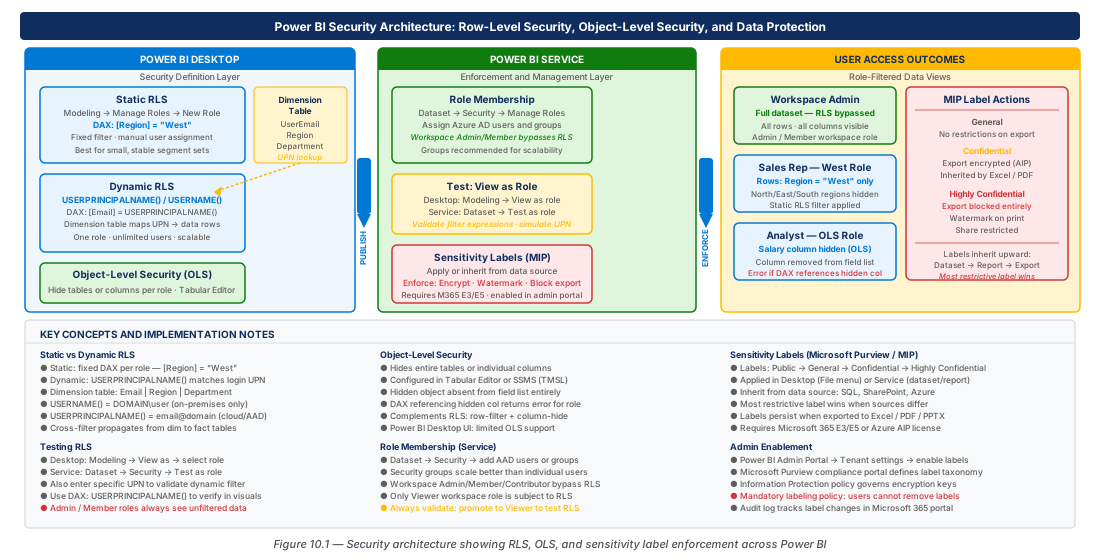
Power BI security operates as concentric rings: tenant governance and Azure AD policies form the outer ring, workspace permissions (Admin, Member, Contributor, Viewer) control artifact access, dataset Build permission governs report creation, and the innermost rings — RLS, OLS, and sensitivity labels — govern the data itself. A critical production pitfall is assuming Workspace Viewer access implies row-level scoping; it does not. RLS must be explicitly configured, and users not assigned to any role see the full dataset.
Users with Power BI Dataset Build permission bypass RLS entirely when connecting via Analyze in Excel or live connections from Power BI Desktop. The architectural response is workspace separation — keep model builders in a development workspace with Build access and data consumers in a production workspace with Viewer-only access, using dataset sharing to bridge them without granting Build rights.
Security Role Artifacts and Lifecycle
RLS roles are model artifacts stored in the .pbix and published with the dataset — modifying a role definition requires republishing from Desktop. Role membership, however, is managed in the Power BI Service without republishing and is typically delegated to workspace admins or business owners. OLS configurations follow the same publication lifecycle; sensitivity labels are applied separately via Desktop, the Service, or automatic inheritance from labeled upstream sources.
2. Static RLS: Role Definition and DAX Filter Expressions
Defining Static Roles in Power BI Desktop
Static RLS roles are defined in Modeling > Manage Roles. Each role is paired with a Boolean DAX table filter expression — Power BI returns only rows for which the expression evaluates to TRUE. Filters should target dimension tables rather than fact tables; Power BI propagates the dimension filter through relationships to downstream fact tables automatically. Filtering the fact table directly is a common mistake that prevents upstream filter propagation.
DAX Filter Expression Patterns
Common static filter patterns: single value ([Region] = "North America"), multi-value set ([Region] IN {"North America","EMEA"}), and substring match (CONTAINSSTRING([SalesRegionCodes],"NA")). Note that filter expressions cannot reference measures or columns from other tables without RELATED or RELATEDTABLE.
Important
RLS filter expressions are evaluated at query time on every row of the filtered table. Complex filters using RELATED or nested CALCULATE calls can add significant latency at scale. Profile with Performance Analyzer before deploying to high-concurrency environments.
Multiple Tables and Role Interaction
A single role can filter multiple tables simultaneously — each table entry adds an independent filter. When a user belongs to multiple roles, Power BI applies the union (OR) of all role filters, not the intersection. If AND semantics are required, merge the conditions into a single role with a compound DAX expression. Workspace Admins, Members, and Contributors bypass RLS entirely; only Viewers and users with direct Read permission are subject to role filters.
Note
Bidirectional cross-filter relationships can cause filter context leakage through RLS. Use unidirectional relationships in security-sensitive models and apply explicit filters to both sides when bidirectionality is functionally required.
3. Dynamic RLS with USERPRINCIPALNAME() and Dimension Tables
Dynamic RLS Architecture
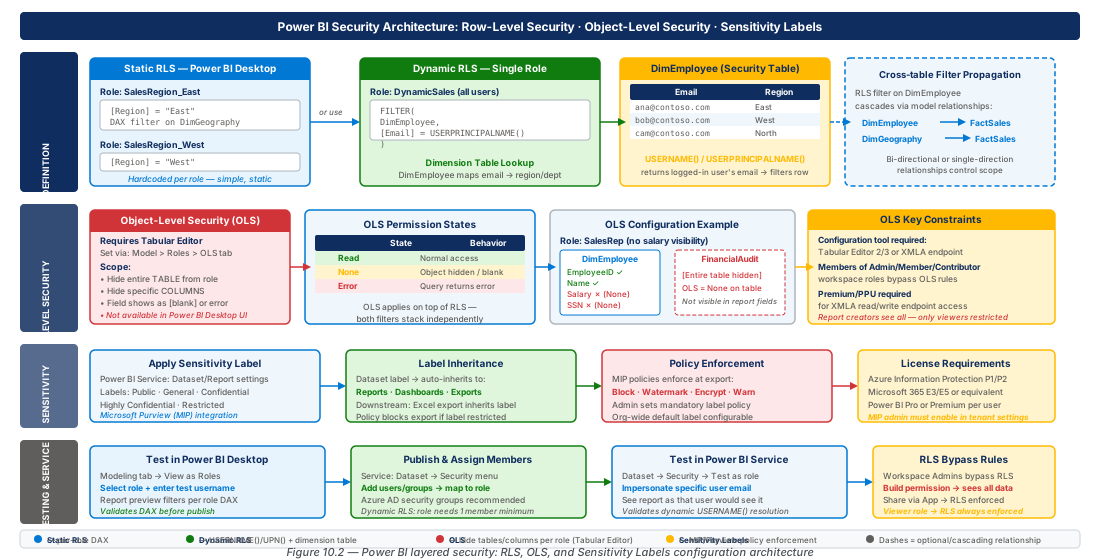
Dynamic RLS uses a single role definition whose DAX filter expression evaluates differently per user at query time. The canonical pattern loads a security mapping table (e.g., UserSecurity) with columns [UserPrincipalName] and [Region], joins it to the Geography dimension via [Region], and sets the role filter on the security table to [UserPrincipalName] = USERPRINCIPALNAME(). The relationship propagates the per-user filter through Geography to the Sales fact table. The security mapping table should be sourced from a live data source — not an "Enter Data" table — so access changes take effect on dataset refresh without republishing the .pbix.
USERNAME() vs. USERPRINCIPALNAME()
USERPRINCIPALNAME() returns the Azure AD UPN (user@domain.com format) and is the recommended function for all modern cloud Power BI deployments. USERNAME() returns DOMAIN\username format — identical to UPN for cloud-only accounts, but different for hybrid AD accounts with mismatched SAM names. Always use USERPRINCIPALNAME() and store UPN values in the security mapping table.
Tip
Validate dynamic RLS using real authentication tokens in the Power BI Service with dedicated test accounts — the Desktop "View as" dialog uses a static string, not a real AAD token, and cannot replicate hybrid identity edge cases.
Implementing Dynamic RLS
Five-step pattern: (1) load the security mapping table from a governed live source; (2) create a many-to-one relationship from UserSecurity[Region] to Geography[RegionCode] with single-direction cross-filter; (3) define the role filter; (4) add all data consumers to this single role; (5) handle edge cases — unmatched users see no data (correct default), users with multiple rows see the union of their partitions.
-- Dynamic RLS role filter on UserSecurity table
[UserPrincipalName] = USERPRINCIPALNAME()

-- Manager-subordinate variant (user sees own rows + reports)
[UserPrincipalName] = USERPRINCIPALNAME()
|| [ManagerUPN] = USERPRINCIPALNAME()Warning
Never use the "Enter Data" feature for the security mapping table in production. Hard-coded security tables require dataset republication on every access change — use a live, refreshable data source instead.
4. Object-Level Security: Hiding Tables and Columns
OLS Architecture and Capacity Requirements
Object-Level Security hides tables or columns at the metadata level — hidden objects do not appear in the field list and cannot be referenced in DAX or report visuals by members of the restricted role. OLS requires Premium capacity (Premium Per User or Premium Per Capacity) and datasets using the enhanced metadata format. It is unavailable in shared-capacity Pro workspaces. OLS is configured exclusively through Tabular Editor (free TE2 or commercial TE3) — Power BI Desktop has no native OLS UI.
Configuring Column-Level OLS
In Tabular Editor, expand the table, select the column, open the Security tab in properties, and set MetadataPermission to None for the role to be denied. The valid values are Read (allowed), None (denied — object hidden), and ReadDesign. When a column is OLS-restricted, any measure that references it also becomes inaccessible to the denied role — users receive an error, not empty results.
Important
OLS denial returns an error to the user — not a blank visual or filtered row set. Report developers must build separate report pages for OLS-restricted roles to avoid confusing error states.
OLS vs. RLS Decision and Comparison
Use RLS when all users see the same columns but different rows (regional data, cost centers). Use OLS when certain users must not know a column or table exists (salary, PII, competitive intelligence). Combine both for fine-grained governance: RLS scopes rows, OLS scopes columns. OLS and RLS are independent — a table can have both applied to different aspects of the same role.
| Security Control | Scope | Capacity Req. | Where Configured | Effect on Denied Users |
|---|---|---|---|---|
| Workspace Permissions | Workspace artifacts | Shared or Premium | Power BI Service | Cannot view workspace reports |
| Dataset Build Permission | Dataset | Shared or Premium | Power BI Service | Cannot build reports against dataset |
| RLS (Static) | Rows in tables | Shared or Premium | Power BI Desktop | Sees only role-filtered rows |
| RLS (Dynamic) | Rows in tables | Shared or Premium | Power BI Desktop | Sees rows matching identity mapping |
| OLS (Column-Level) | Specific columns | Premium (PPU or P-SKU) | Tabular Editor | Error on any visual referencing column |
| OLS (Table-Level) | Entire tables | Premium (PPU or P-SKU) | Tabular Editor | Error on any visual referencing table |
| Sensitivity Labels (MIP) | Dataset/Report artifact | Shared or Premium | Desktop or Service | Export governed by MIP policy |
5. Sensitivity Labels: Applying, Inheriting, and Enforcing MIP Policies
Microsoft Information Protection and Power BI Integration
MIP sensitivity labels (Confidential, Highly Confidential, Internal, etc.) classify data confidentiality and trigger downstream governance policies. Labels applied to Power BI datasets travel with data when exported — Excel, CSV, PowerPoint, and Analyze in Excel connections all inherit the source dataset's label, and the associated MIP policy (encryption, watermarking, access restrictions) is applied to the exported file. Labels are defined in the Microsoft Purview compliance portal and published to Power BI users via label policies.
Applying Labels in Desktop and the Service
In Power BI Desktop, the Sensitivity button in the Home ribbon opens the label picker. The selected label is embedded in the .pbix metadata and published with the dataset. In the Power BI Service, labels can be viewed and changed on datasets, reports, dashboards, and dataflows via artifact settings. Label downgrade (reducing classification) may require business justification and is logged to the Purview audit log for compliance traceability.
Note
Sensitivity label support requires Azure Information Protection Plan 1 or Plan 2 (included in M365 E3/E5). Users without AIP licenses cannot apply or change labels, and export operations may be blocked by label policy.
Label Inheritance and Downstream Enforcement
When "Automatically apply sensitivity labels from data sources" is enabled at the tenant level, Power BI datasets inherit the highest-classification label from their upstream data sources. This propagates to downstream reports, dashboards, and dataflows. Exported files receive the inherited label and associated Azure Rights Management policy — encryption, forwarding restrictions, and visual watermarks are applied transparently. This creates an auditable governance chain from source classification to exported artifact.
Warning
Sensitivity labels govern how data can be exported and forwarded — not who can view it within Power BI. Always combine labels with workspace permissions and RLS to achieve both access governance and export governance.
6. Testing RLS and Managing Role Membership
Testing with View as Role in Power BI Desktop
The View as feature (Modeling ribbon) renders the report through a selected role's filter. For static roles, check the role checkbox. For dynamic roles, check the role AND enter a test UPN in the "Other user" field — Power BI substitutes this string as the return value of USERPRINCIPALNAME(). Test with UPNs present in the security table (expect scoped data), absent UPNs (expect no data), and UPNs mapped to multiple partitions (expect union). Document each test case in a test matrix with expected vs. actual row counts.
Managing Role Membership in the Power BI Service
Navigate to the workspace dataset > three-dot menu > Security to add Azure AD users or security groups to each defined role. Adding Azure AD security groups is the recommended pattern — group membership in AAD drives access without requiring any dataset changes. Changes take effect within minutes due to AAD token caching. The Power BI REST API (POST .../datasets/{id}/roles/{role}/members) enables automated membership management integrated with HR and identity governance systems.
Important
Role membership and workspace permissions are independent. A user in an AAD group mapped to an RLS role must also have at least Viewer-level workspace access to see any reports. A Workspace Viewer not assigned to any role sees all data if no catch-all role filter is defined.
Validating RLS in the Power BI Service
Always validate published RLS using real test accounts in the Service — real AAD tokens and group memberships may differ from Desktop simulation. Create two test accounts: one with a role assignment (expects scoped data) and one outside all roles (expects no data or an access message). Verify slicers and drillthrough pages cannot expose out-of-scope data. For dynamic RLS, confirm that accounts absent from the security mapping table return zero rows, not all rows — a mismatch indicates a relationship or filter expression error.
7. Lab: Implementing Dynamic RLS and MIP Sensitivity Labels
CE-19: Dynamic RLS with Azure SQL Security Mapping Table
Provision an Azure SQL Database to host the dynamic RLS security mapping table, populate it with user-region mappings, and configure the Power BI dataset role membership via REST API.
# CE-19: Provision Azure SQL and configure Dynamic RLS
RESOURCE_GROUP="rg-rls-ols-data-protection-prod-001"
SQL_SERVER_NAME="rls-ols-prod-eastus2-001"
SQL_DB_NAME="RLSSecurityMappingDB"

az group create --name "$RESOURCE_GROUP" --location "eastus2"
az sql server create --name "$SQL_SERVER_NAME" --resource-group "$RESOURCE_GROUP" \
  --location "eastus2" --admin-user "sqladmin" --admin-password "S3cur3Pa\$\$w0rd!"
az sql db create --resource-group "$RESOURCE_GROUP" --server "$SQL_SERVER_NAME" \
  --name "$SQL_DB_NAME" --service-objective S2
# ... see full script below for SQL table creation and REST API role assignment
Full script creates dbo.UserSecurityMapping table, seeds sample UPN-to-Region rows, and calls the Power BI REST API to assign an AAD security group to the DynamicSalesRegion role.
CE-20: Apply MIP Sensitivity Labels and Validate Export Governance
Apply a Confidential sensitivity label to a Power BI dataset via REST API, verify label inheritance on downstream reports, and query the Purview audit log for label activity.
# CE-20: Apply MIP label to Power BI dataset via REST API
ACCESS_TOKEN=$(az account get-access-token \
  --resource "https://analysis.windows.net/powerbi/api" \
  --query accessToken -o tsv)

curl -s -X POST \
  "https://api.powerbi.com/v1.0/myorg/datasets/SetLabelAsAdmin" \
  -H "Authorization: Bearer \${ACCESS_TOKEN}" \
  -H "Content-Type: application/json" \
  -d '{"datasets":[{"id":"<dataset-id>"}],"labelDetails":{"labelId":"<mip-label-id>"}}'
# Verify label on downstream report and query Purview audit log for label events
Full script verifies label on the downstream report, exports a label-coverage JSON for all workspace datasets, and queries Microsoft Graph for PowerBI audit log label events in the past 24 hours.
8. Chapter Summary
| Concept | Key Point |
|---|---|
| Static RLS | Literal DAX filters per role; multiple roles are additive (OR); Workspace Admins/Members/Contributors bypass RLS. |
| Dynamic RLS | Single role using USERPRINCIPALNAME() matched to a security mapping table; scales without per-user roles; sourced from a live refreshable dataset. |
| Object-Level Security | Hides tables/columns at metadata level; Premium capacity required; configured via Tabular Editor; denial returns errors, not empty results. |
| Sensitivity Labels | Inherited from upstream sources; travel with exported files; export enforcement (encryption, watermarks) governed by MIP policy. |
| Role Membership | Managed in Service without republishing; use AAD security groups; automate via Power BI REST API for IAM integration. |
| RLS Testing | "View as role" + UPN in Desktop for development; real test accounts in Service for production validation before release. |
Chapter: 10 of 12 | Status: v0.1 Draft |