Power BI Data Analyst PL-300
Deployment Pipelines, Incremental Refresh, and ALM
Enterprise Power BI solutions demand the same rigorous release management discipline applied to any production software system. Deployment Pipelines, incremental refresh policies, and XMLA endpoint access collectively form the Application Lifecycle Management (ALM) backbone of the Power BI platform — enabling teams to promote validated artifacts from development through test into production without manual rework or configuration drift.
1. Foundations of Power BI ALM
Why Application Lifecycle Management Matters for BI
Analytics solutions fail in production for the same reasons application software fails: untested changes, configuration mismatch between environments, and manual deployment steps that introduce human error. Power BI ALM addresses these failure modes by formalizing the promotion path from a developer's workspace through a governed test environment and into a locked production workspace — each stage configured independently but sharing a common artifact lineage.
The PL-300 exam weights the Deploying and Maintaining Assets domain at approximately 15–20% of exam content. Candidates must understand how dataset rules override data source connections per stage, how incremental refresh interacts with pipeline deployments, and when the XMLA endpoint is required for scenarios the standard UI cannot support.
Power BI Premium and the ALM Capability Gate
Deployment Pipelines and XMLA endpoint write access are gated on Power BI Premium capacity — either Premium Per User (PPU) or Premium Per Capacity (P-SKU). The PPU model makes ALM accessible to small teams without a P1 commitment; for large consumer bases, Premium Per Capacity provides dedicated compute. As of 2026, F64+ Fabric Capacity is functionally equivalent to P1 for ALM features.
| Feature | Pro | PPU | P1+ | EM1+ |
|---|---|---|---|---|
| Deployment Pipelines | No | Yes | Yes | Read only |
| XMLA Read | No | Yes | Yes | Yes |
| XMLA Write | No | Yes | Yes | No |
| Incremental Refresh | Limited | Full | Full | Full |
Important
XMLA endpoint write access is unavailable on Embedded (EM) SKUs. ALM Toolkit and Tabular Editor write operations will fail on EM capacity — upgrade to P-SKU or PPU to enable full ALM tooling.
2. Deployment Pipeline Stages: Development, Test, and Production
Pipeline Architecture and Stage Semantics
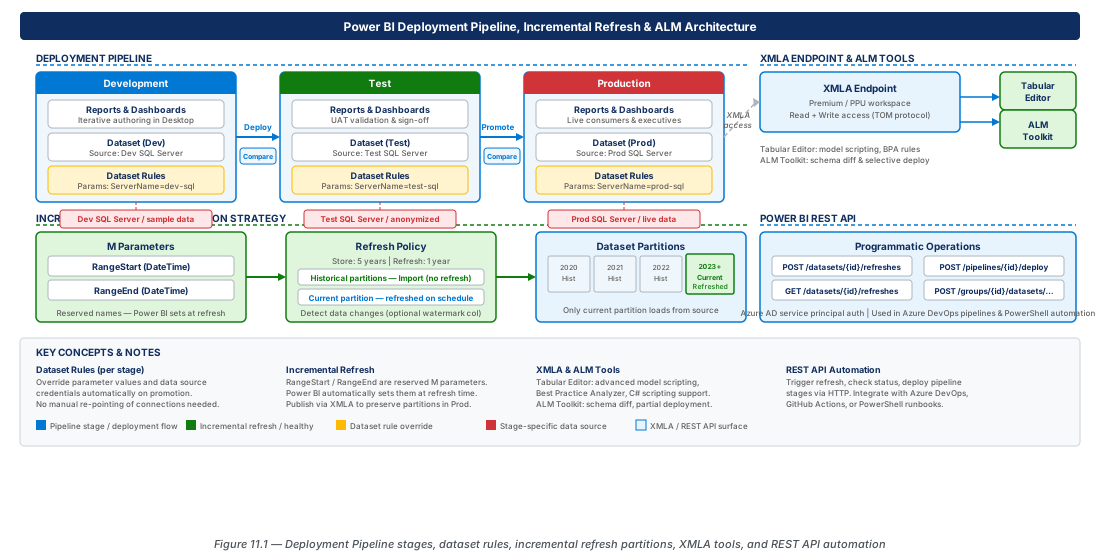
A Power BI Deployment Pipeline links up to three workspaces — Development, Test, and Production — into an ordered release chain. Each stage maps to exactly one workspace with independent access controls: Development is open to contributors, Test restricts write access to senior developers, and Production is locked to pipeline-only deployments. No artifact ever reaches production except through the validated pipeline path.
Creating a pipeline requires workspace Admin role on the target workspaces and a Premium or PPU license. Workspace naming should follow Cloud Adoption Framework standards, for example: ws-powerbi-salesanalytics-dev-001, ws-powerbi-salesanalytics-test-001, ws-powerbi-salesanalytics-prod-001.
The Compare View and Artifact Diffing
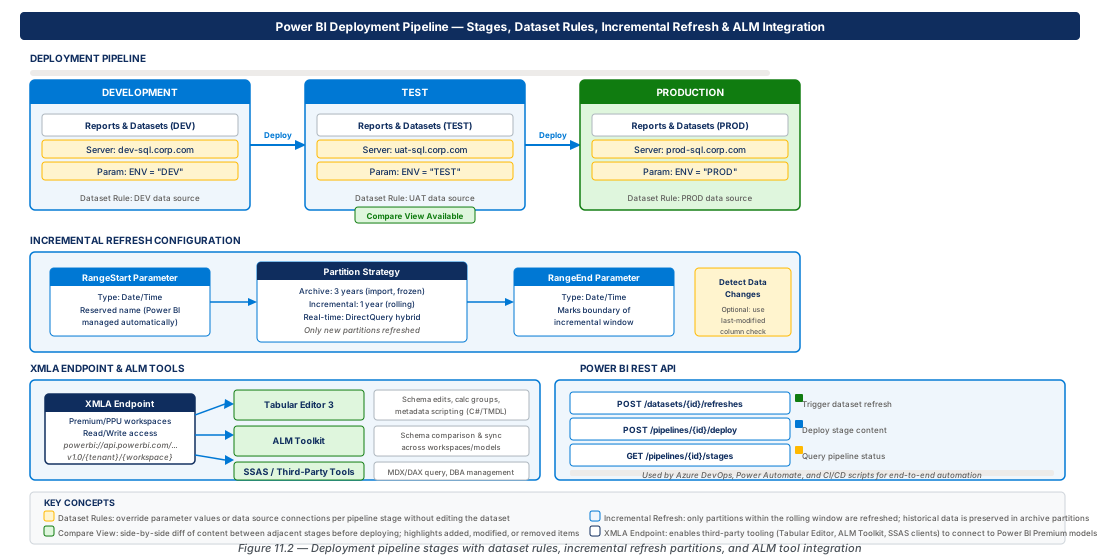
The compare view evaluates metadata of every artifact in adjacent stages and presents a side-by-side difference report: identical, different, or present in only one stage. It surfaces whether an artifact's last-modified timestamp differs, whether an artifact hasn't been promoted, and whether a target-stage artifact was modified directly — a governance violation. For field-level DAX diff, use Tabular Editor or ALM Toolkit.
Warning
Direct modifications to Test or Production artifacts create configuration drift the compare view flags but cannot auto-resolve. Enforce a policy of Viewer-only access for developers on Test and Production workspaces.
Promoting Artifacts Through Stages
Promotion copies artifact content from one stage to the adjacent forward stage and applies deployment rules automatically before the artifact becomes active. Promotion is atomic per artifact; the pipeline does not auto-resolve dependencies. Use the "Deploy to" button with "Related content" enabled to automatically include dependent artifacts and reduce version mismatch risk.
3. Dataset Rules for Environment-Specific Configuration
Understanding Dataset Rules
Dataset rules are per-stage configuration overrides that modify data source connection strings or M parameter values on a promoted dataset without altering its underlying definition. They are configured in the Deployment Rules pane and applied automatically at promotion time — eliminating any post-deployment manual reconfiguration. Rules apply to Import and DirectQuery datasets; they do not apply to Push or Streaming datasets.
Configuring Data Source Rules
A data source rule intercepts the connection string of a specific source and replaces it with the stage-specific value. For Azure SQL Database, a common pattern varies only the server name: changing sql-analytics-dev-eastus2-001.database.windows.net to sql-analytics-prod-eastus2-001.database.windows.net.
Important
Data source rules perform string substitution on connection parameters. If Development uses an on-premises gateway and Production connects directly to Azure SQL, a rule cannot bridge this architectural difference — both stages must use the same connection mechanism.
Configuring Parameter Rules
Parameter rules override any scalar M query parameter per stage: DatabaseName, RowLimitPerTable, EnvironmentTag, and so on. The dataset must be published with parameters defined in Power Query Editor first. A typical enterprise pattern combines a parameter rule for EnvironmentName with a data source rule for the SQL server — both rules apply simultaneously during promotion.
Tip
Use M parameters as the primary mechanism for environment configuration from the outset. A dataset designed with ServerName and DatabaseName as parameters is trivially configurable via dataset parameter rules across all pipeline stages.
4. Incremental Refresh: RangeStart, RangeEnd, and Partition Strategy
The Business Case for Incremental Refresh
Full dataset refresh is unsustainable for large fact tables. Incremental refresh partitions datasets by date and refreshes only recent partitions — often reducing a 40-minute full refresh to a 2-minute incremental refresh. It also enables "detect data changes," which skips partitions whose source data has not changed since the last cycle.
Defining RangeStart and RangeEnd Parameters
Incremental refresh requires two M parameters named exactly RangeStart and RangeEnd (case-sensitive), both of type DateTime. The Power BI Service injects partition-specific values at refresh time; default values set in Power BI Desktop are used only during local development. The filter step referencing these parameters must fold to the data source — verify by checking "View Native Query" is available on the filter step.
// Incremental refresh filter — must fold to the data source
let
    Source = Sql.Database(ServerName, DatabaseName,
        [Query = "SELECT * FROM dbo.FactOrders"]),
    FilteredRows = Table.SelectRows(Source,
        each [OrderDate] >= RangeStart and [OrderDate] < RangeEnd)
in
    FilteredRows
Configuring the Incremental Refresh Policy
Configure the policy by right-clicking the table in the Fields pane and selecting "Incremental refresh and real-time data." Key settings are the archive window (total historical data retained), the incremental window (recent data refreshed every cycle), and the optional detect-data-changes column.
| Policy Setting | Example Value | Impact |
|---|---|---|
| Archive window | 5 years | Dataset retains 5 years of history |
| Incremental window | 3 days | Last 3 days refreshed on every cycle |
| Only refresh complete days | Enabled | Partial-day partitions excluded until day ends |
| Detect data changes column | LastModifiedDate | Historical partitions refreshed if source updated |
| XMLA override allowed | Enabled | External tools can manage partitions directly |
Note
"Only refresh complete periods" is a best practice for transactional sources where intraday data is incomplete. It prevents partial data from appearing in reports until the full day has been processed.
Partition Strategy and Interaction with Deployment Pipelines
When a dataset with incremental refresh is promoted through a pipeline, the pipeline copies the dataset definition but not the data partitions. The target stage must be fully refreshed once after promotion; subsequent refreshes will be incremental. When a policy is extended (for example, from 3 to 5 years), the next refresh reloads the full expanded window — plan this during maintenance windows.
Warning
Do not publish a PBIX file from Power BI Desktop over a dataset that has accumulated incremental refresh partitions — this destroys all partitions and forces a complete historical refresh. Use the XMLA endpoint and Tabular Editor's "Deploy model structure only" option instead.
5. XMLA Endpoint: Tabular Editor, ALM Toolkit, and Enterprise ALM
Understanding the XMLA Endpoint
The XMLA endpoint exposes Premium Power BI workspaces as Analysis Services servers, accessible to any XMLA-protocol tool: SSMS, Tabular Editor, ALM Toolkit, and AMO/TOM client libraries. The endpoint URL follows powerbi://api.powerbi.com/v1.0/myorg/<WorkspaceName>. Read access is on by default; write access requires a capacity admin to enable it in Premium Capacity Settings.
Tabular Editor for Model Development and Deployment
Tabular Editor (v2.x free, v3.x commercial) connects to the XMLA endpoint and exposes the full Tabular Object Model for editing. For ALM, its key capabilities are: exporting models to folder-based TMSL for git version control, applying model changes from TMSL without full republication, and the Deploy wizard that targets specific objects — preserving incremental refresh partitions.
# Deploy model structure only via Tabular Editor CLI (preserves partitions)
XMLA_ENDPOINT="powerbi://api.powerbi.com/v1.0/myorg/ws-powerbi-salesanalytics-test-001"

TabularEditor.exe "./model/SalesAnalytics.bim" \
  -D "${XMLA_ENDPOINT}" "SalesAnalytics" \
  -P -V -O \
-C "ServicePrincipalId" "ServicePrincipalSecret"Tip
Use a service principal for XMLA-based CI/CD deployments — service principals support client credential authentication without MFA and can be granted workspace-level access without consuming a named user license.
ALM Toolkit for Schema Comparison and Migration
ALM Toolkit compares source and target tabular models at the object level — tables, columns, measures, relationships, roles — and generates a deployment plan for only the differences. Its "Deploy model structure only" option sends schema changes to the Production workspace via XMLA while leaving all existing data partitions intact. This is the recommended approach for ongoing model maintenance on production datasets with large incremental refresh history.
Note
ALM Toolkit does not manage data refresh. After deploying schema changes (e.g., adding a calculated column), trigger a refresh of affected table partitions separately via the Power BI Service, REST API, or an XMLA Process Table command.
6. Power BI REST API for Programmatic Refresh and Pipeline Deployment
REST API Architecture and Authentication
The Power BI REST API base URL is https://api.powerbi.com/v1.0/myorg/. Authentication uses Azure AD OAuth 2.0; production automation uses the client credentials flow (service principal). The service principal must be a workspace member and enabled in the Power BI tenant settings under "Allow service principals to use Power BI APIs."
# Acquire OAuth token and trigger dataset refresh
ACCESS_TOKEN=$(curl -s -X POST \
  "https://login.microsoftonline.com/${TENANT_ID}/oauth2/v2.0/token" \
  -d "grant_type=client_credentials&client_id=${CLIENT_ID}&client_secret=${CLIENT_SECRET}&scope=https://analysis.windows.net/powerbi/api/.default" \
  | python3 -c "import sys,json; print(json.load(sys.stdin)['access_token'])")

curl -s -X POST \
  "https://api.powerbi.com/v1.0/myorg/groups/${WORKSPACE_ID}/datasets/${DATASET_ID}/refreshes" \
  -H "Authorization: Bearer ${ACCESS_TOKEN}" \
  -H "Content-Type: application/json" \
  -d '{"notifyOption":"MailOnFailure","type":"Full","commitMode":"transactional"}'
Monitoring Refresh Status
The refresh trigger is asynchronous — a 202 response means the refresh was queued, not completed. Poll GET /groups/{groupId}/datasets/{datasetId}/refreshes?$top=1 to check status. The enhanced refresh API supports targeting specific tables and partitions, controlling commit mode, and setting parallelism — essential for large datasets where full simultaneous partition refresh would exhaust gateway capacity.
Programmatic Pipeline Deployment via REST API
Key pipeline operations: list stages (GET /pipelines/{pipelineId}/stages), retrieve artifacts (GET /pipelines/{pipelineId}/stages/{stageOrder}/artifacts), and deploy (POST /pipelines/{pipelineId}/stages/{stageOrder}/deploy). Selective deployment targets specific artifact IDs — the preferred approach for production automation because it provides explicit control matching the change set to the PR being deployed.
# Deploy specific dataset from Test (stage 1) to Production (stage 2)
curl -s -X POST \
  "https://api.powerbi.com/v1.0/myorg/pipelines/${PIPELINE_ID}/stages/1/deploy" \
  -H "Authorization: Bearer ${ACCESS_TOKEN}" \
  -H "Content-Type: application/json" \
  -d "{
    \"sourceStageOrder\": 1,
    \"datasets\": [{\"id\": \"${DATASET_ARTIFACT_ID}\"}],
    \"reports\": [{\"id\": \"${REPORT_ARTIFACT_ID}\"}],
    \"isBackwardDeployment\": false,
    \"note\": \"Automated deployment — Release 2026.07.20 — PR #847\"
}"Warning
The Power BI REST API enforces rate limits (200 requests/hour per service principal for most operations). Design automation scripts with exponential backoff and monitor API call volumes when multiple pipelines share a single service principal identity.
Integrating the REST API with Azure DevOps
A mature enterprise ALM workflow combines Azure DevOps pipelines, the Power BI REST API, Tabular Editor, and Deployment Pipelines into a cohesive release system: developers commit TMSL and PBIX files to feature branches; CI validates DAX syntax; upon merge, Tabular Editor CLI deploys schema changes to the Development XMLA endpoint; gated release stages promote artifacts through the pipeline API with approvals; and automated tests gate the final Production promotion.
7. Lab
CE-21: Configure Deployment Pipeline with Dataset Rules
Authenticate as a service principal, create a three-stage pipeline, assign workspaces to each stage, and configure Production-stage dataset rules for data source and parameter overrides. Verify the compare view in the Power BI Service confirms correct promotion.
# CE-21: Create pipeline, assign workspaces, configure Production dataset rules
ACCESS_TOKEN=$(curl -s -X POST "https://login.microsoftonline.com/${TENANT_ID}/oauth2/v2.0/token" \
  -d "grant_type=client_credentials&client_id=${CLIENT_ID}&client_secret=${CLIENT_SECRET}&scope=https://analysis.windows.net/powerbi/api/.default" \
  | python3 -c "import sys,json;print(json.load(sys.stdin)['access_token'])")

PIPELINE_ID=$(curl -s -X POST "https://api.powerbi.com/v1.0/myorg/pipelines" \
  -H "Authorization: Bearer ${ACCESS_TOKEN}" -H "Content-Type: application/json" \
  -d '{"displayName":"deployment-pipelines-prod-eastus2-001"}' \
  | python3 -c "import sys,json;print(json.load(sys.stdin)['id'])")

# Assign workspaces (stages 0=Dev, 1=Test, 2=Prod) then configure Production rules
curl -s -X PUT \
  "https://api.powerbi.com/v1.0/myorg/pipelines/${PIPELINE_ID}/stages/2/datasetRules" \
  -H "Authorization: Bearer ${ACCESS_TOKEN}" -H "Content-Type: application/json" \
  -d "{\"datasetRules\":[{\"id\":\"${DATASET_ARTIFACT_ID}\",
    \"datasourceRules\":[{\"datasourceType\":\"Sql\",\"connectionDetails\":{
    \"server\":\"sql-analytics-prod-eastus2-001.database.windows.net\"}}],
    \"parametersRules\":[{\"name\":\"EnvironmentName\",\"value\":\"Production\"}]}]}"

echo "Pipeline and dataset rules configured. Verify compare view in Power BI Service."CE-22: Configure Incremental Refresh and Validate via XMLA
Verify partition creation by querying the XMLA endpoint in SSMS, then trigger a selective partition refresh for yesterday's data partition via the enhanced refresh REST API. Poll for completion and confirm success.
# CE-22: Trigger selective partition refresh for today's incremental partition
PARTITION_NAME="FactOrders_$(date -u '+%Y_%m_%d')"

HTTP_STATUS=$(curl -s -o /dev/null -w "%{http_code}" -X POST \
  "https://api.powerbi.com/v1.0/myorg/groups/${WORKSPACE_ID}/datasets/${DATASET_ID}/refreshes" \
  -H "Authorization: Bearer ${ACCESS_TOKEN}" -H "Content-Type: application/json" \
  -d "{\"type\":\"full\",\"commitMode\":\"transactional\",\"maxParallelism\":2,
    \"objects\":[{\"table\":\"FactOrders\",\"partition\":\"${PARTITION_NAME}\"}]}")

echo "Refresh trigger status: ${HTTP_STATUS} (202 = queued)"
# Poll GET /refreshes?$top=1 until status is Completed or Failed
8. Summary
| Concept | Key Point |
|---|---|
| Deployment Pipeline Stages | Three stages (Dev/Test/Prod) each map to a dedicated workspace; promotion copies artifact content and applies stage-specific rules automatically. |
| Compare View | Shows artifact-level differences between adjacent stages; surfaces direct workspace modifications that bypass the pipeline. |
| Dataset Rules | Per-stage overrides for data source connections and M parameter values; applied automatically at promotion time. |
| Incremental Refresh Parameters | RangeStart and RangeEnd are mandatory DateTime M parameters injected by the Power BI Service at refresh time to scope each partition's data load. |
| Partition Strategy | Policy changes and PBIX republication can destroy partitions — use XMLA/Tabular Editor for schema updates on production datasets. |
| XMLA Endpoint | Premium-only; enables Tabular Editor and ALM Toolkit to deploy schema changes without destroying incremental refresh partitions. |
| Power BI REST API | Enables programmatic refresh, status polling, pipeline deployments, and rule configuration; use service principal with client credentials for CI/CD. |
Chapter: 11 of 12 | Status: v0.1 Draft |